 SnapTune
STEP 1
Choose a matching pair.
Use one photograph from before the work and one from afterwards. Similar viewpoints, camera heights and framing make the changes easier to understand. Include the same fixed landmarks, such as a fence, shed or path.
If you are still planning a project, take the before photograph now and note where you stood. Try to return to that position for the after photograph. Avoid comparing a wide shot with a close-up.
STEP 2
Open Side by side.
From SnapTune’s home screen choose Side by side. If a previous collage opens, use Start new to begin another composition. Save any finished work you want to keep first.
Choose your before and after photographs for the two frames. Tap a frame to choose or replace its image. Put the earlier photo first so the comparison reads naturally from left to right.
STEP 3
Line up the garden.
Open Layout and choose the two-photo side-by-side layout. Drag each photo to position it and pinch to zoom. Keep the same landmarks visible in both frames; do not crop out important differences.
Use Spacing for the gap between images, Corners for rounded photo corners and Colour for the surrounding background. A plain background keeps attention on the garden.
STEP 4
Label the stages clearly.
Open Labels and enable the labels. Use Before and After, or wording that suits the project. Check the spelling and the order of the images before you save.
The photographs show the actual project stages. SnapTune combines them into one image; it does not redesign the garden or create the makeover.
STEP 5
Save your comparison.
Tap Save and allow access to add the finished image to Photos if asked. Compositions save at 2048 pixels on their longest edge. Open Photos to check both pictures and labels before sharing.
For client or business use, get permission to share the photographs and avoid including addresses, faces or other private details unintentionally.
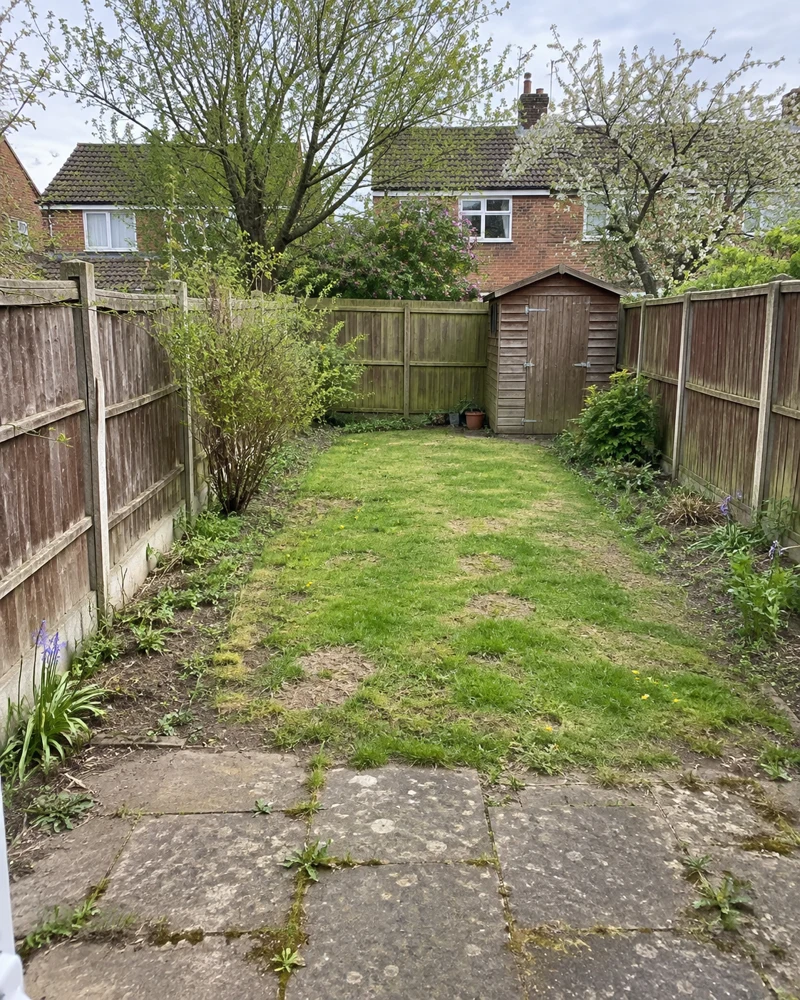
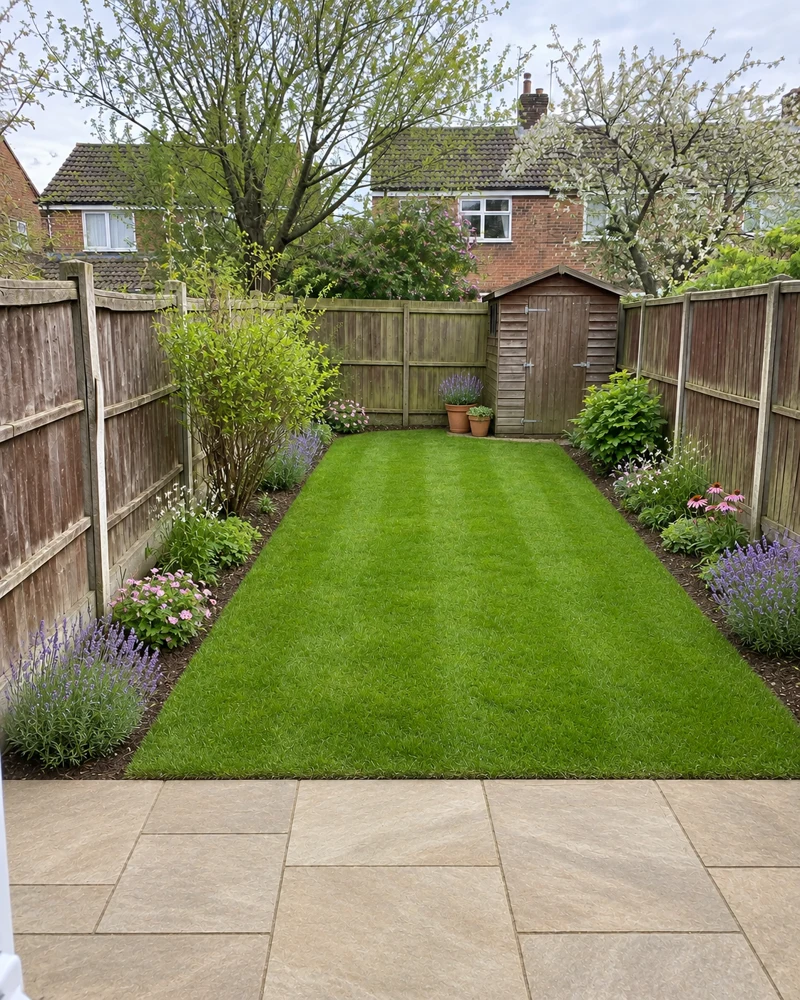
Illustrative garden makeover, rather than a real client project.